Instead of manually copying product details into scripts, generating disconnected clips, and rebuilding the edit, use an AI video ad generator workflow that moves from a verified product link to an editable timeline. In Planegraph, generation, a full-featured video timeline, a layered image canvas, and reusable workflows support the process through finished output—not just the first generated asset.
TL;DR
Planegraph suits product marketers who need an AI video ad generator with editing controls, not just generated clips.
Verify product facts and reference images before creating scripts, product shots, or motion.
Use AI assistants for requested changes and manual timeline controls for final adjustments.
Approve the finished export separately from the script and preview.
Why this matters
A generated clip is not a finished product ad. The product must remain recognizable, the script must match approved claims, and the final frame must give the viewer a clear next action.
Planegraph is best for product marketers who need generated ads they can keep editing. Its video timeline and layered image canvas make editing part of the workflow; they do not remove the need to inspect labels, claims, and cuts.
For your 2026 production brief, define success as an approved, editable ad plus a checked export. Do not treat a promising generation preview as the delivery milestone.
Before you start
Workspace access: Use an account with access to the generation, editing, and workflow tools you intend to use. Confirm those tools are accessible before preparing the full campaign.
Approved source material: Gather the product link, original product photographs, approved claims, brand assets, destination requirements, and permission to use any supplied people or reference content.
The product-link gotcha: A link is a source to verify, not proof that every detail will transfer correctly. Keep approved copy and original images separately so inaccessible pages, variant confusion, or missing imagery cannot derail the build.
Choose one audience, one product variant, and one action before generating anything. If the product page mixes several variants, explicitly identify which packaging and features belong in this ad.
For a practical starting brief, choose a 15-second draft with 3 scenes. These are production choices for this guide, not platform limits or performance benchmarks. Specify the destination's required aspect ratio separately; use 9:16 only when you are preparing a vertical placement.
Product brief and source assets
Turn the product link into an approved brief
Open the product page and record the exact product name, selected variant, approved benefit, and intended action. Copy only claims you can substantiate; exclude unsupported comparisons and promises.
Save the original product images separately. Select a clear reference showing the packaging, silhouette, and identifying details that must survive generation.
Write a short creative brief containing the audience, placement, message, visual direction, exclusions, and final approval owner. Treat this as your source of truth throughout production.
Assign each scene a job: introduce the product or problem, show the relevant use or benefit, then close with the approved action. Keep the scene descriptions concrete enough to review before generation.
Expected result: You have an approved brief and a reference set that another editor can understand without reopening the product page.
A useful brief instruction is: preserve the supplied product appearance, use only the approved claims, and leave final promotional text editable. This separates creative freedom from factual requirements.
For your 2026 source folder, distinguish approved references from visual inspiration. A competitor's ad can suggest pacing or composition; it cannot establish facts about your product or permission to reuse its assets.
If your source photographs hide essential details, fix that before requesting motion. The product-image reference checklist covers the reference preparation that belongs at this stage.
Choose the creative route
Use the simplest route that communicates the product accurately. Both routes below need an editable finish, but they place different demands on the source material.
Product-led ad
Best for: Online-store owners showing a physical item
Advantage: Keeps attention on appearance, use, and packaging
Limitation: Generated motion can distort identifying details
Approval priority: Product fidelity across frames
Avatar-led ad
Best for: Marketers explaining a product through a presenter
Advantage: Provides a presenter-based structure without filming that presenter
Limitation: A synthetic presenter must not imply a genuine customer experience
Approval priority: Script accuracy and clear presentation
Choose a product-led draft when the packaging or physical action carries the message. Choose an avatar-led draft when explanation matters more than showing an intricate interaction. Neither route excuses a weak reference set.
Generation plan and reusable workflow
Separate scene generation from final assembly
Translate the brief into a scene list. For each scene, specify the subject, action, framing, reference image, and intended transition. Describe what should happen rather than asking for a generally impressive ad.
Use the workflow editor to organize the creative process around those inputs. Keep the brief, references, generation tasks, and review decisions distinct so a changed product image does not become a reason to rewrite approved copy.
Use Prism's planning, checking, and retrying capabilities to work against explicit acceptance criteria. Name the details that matter: the correct variant, recognizable packaging, the intended action, and no invented claims.
Inspect the generated material before assembling the ad. Keep usable scenes, reject incorrect ones, and retry the failed element rather than replacing material that already meets the brief.
Expected result: You have scene material checked against a written plan, with clear reasons for accepting or rejecting each asset.
Prism can plan, check, and retry work, but human approval remains the gate for product accuracy. Give the assistant a correction it can act on: the package shape changed, the wrong variant appeared, or the requested action was missing.
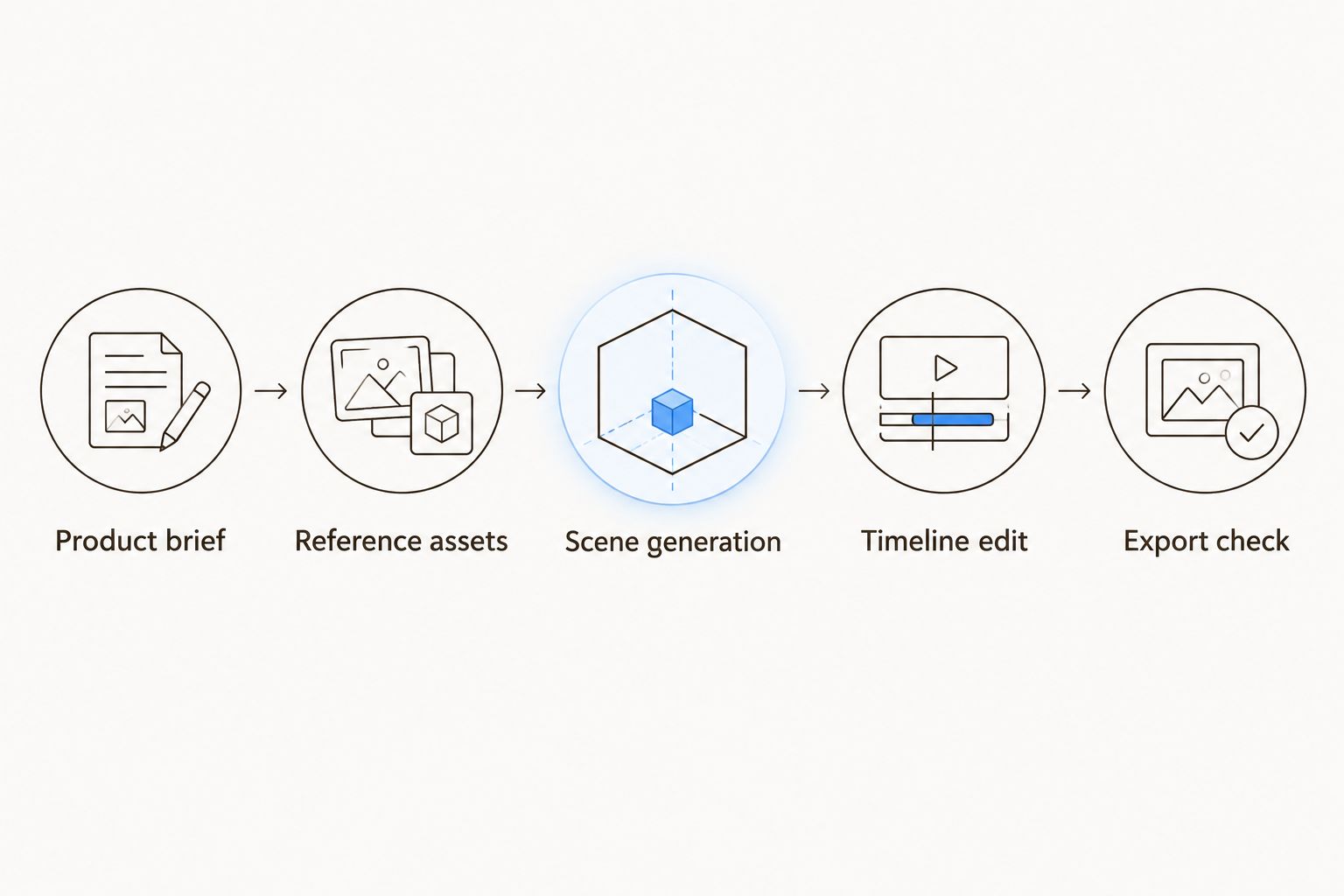
Keep product verification and export review separate from generation.
The workflow is a production structure, not a promise that a pasted URL automatically becomes a complete ad. Keep the approved brief visible when moving between generation and editing.
Use reference content without copying its claims
Planegraph includes a library of thousands of Meta ads that AI can remix around a product, alongside built-in avatars, pose guides, and reference content. Use those materials to define a creative structure rather than sourcing every starting asset elsewhere.
For example, identify a reference's sequence—product introduction, demonstration, closing action—then write that sequence around your own approved material. Remove any reference-specific testimonial, comparison, or offer.
The library helps with starting points; it does not substantiate your message. For your 2026 creative brief, record what you borrowed as direction and what you supplied as product evidence.
Editable assembly and final output
Build the edit before polishing individual clips
Arrange the accepted scenes on the video timeline in the approved order. Check whether the product and message make sense as a sequence before refining individual moments.
Trim scene boundaries and adjust pacing with manual timeline controls. Remove redundant introductions and any frame that shows a visibly incorrect product.
Use the layered image canvas for still-image composition and adjustments. Keep essential product details tied to approved source imagery rather than asking generation to recreate small label text.
Ask the AI assistant for specific changes, then inspect the result. Request a shorter opening or revised composition; use manual controls when the exact cut or placement needs your judgment.
Add and inspect the approved on-screen wording. Do not assume text visible inside generated footage is accurate, readable, or independently editable.
Expected result: You have an assembled ad whose sequence, imagery, and wording can be reviewed before export.
The advantage of an editable workflow is targeted revision. The trade-off is that you still need to judge continuity and factual accuracy; editing controls cannot establish whether a claim is true.
For the 15-second draft, read every text element at normal playback speed. If you have to pause to understand the central message, simplify the wording or give it more screen time.
Review the export as its own deliverable
Review the complete timeline for product identity, spelling, scene continuity, and the closing action. If the ad contains audio, inspect speech, music, and their relative levels.
Check the output requirements for the intended placement before exporting. Confirm the chosen dimensions, aspect ratio, and file requirements against that destination's current guidance.
Open the exported file outside the editor. Watch it from beginning to end and compare the first frame, transitions, text, audio, and ending with the approved version.
Retain the editable project, approved brief, reference assets, and final file together. Label the accepted version clearly so a later revision starts from the correct source.
Expected result: The exported file matches the approved edit, and the project remains usable for subsequent changes.
For 2026 delivery, make approval explicit: identify who accepts product accuracy and who accepts the finished creative. Those responsibilities can belong to the same person, but neither should disappear between generation and export.
Create another ad when the product brief changes
A reusable workflow is useful when you need another audience angle or product variant. Reuse the production structure, not unchecked product facts. This variant is a repeatable creative process, not a claim of automatic product-page monitoring.
Duplicate the approved brief structure and identify what changed: audience, variant, reference image, benefit, or closing action.
Recheck every dependent scene. A packaging change affects product imagery; a new claim affects script and on-screen text; a different placement affects composition and export requirements.
Regenerate only the material that needs new visual content. Edit wording, timing, and arrangement directly where those changes do not require new footage.
Repeat the source, timeline, and export checks. Previous approval does not automatically cover a new variant.
Expected result: You get a distinct ad version without discarding the review structure that made the original reliable.
Keep a brief change note with each version. Otherwise, an attractive earlier scene can slip back into an edit even though it shows outdated packaging or an unapproved message.
Troubleshooting
The product link does not provide usable material
Use the approved copy and original images collected before setup. Resolve the selected variant manually, then continue from the brief rather than repeatedly trying to extract a mixed or inaccessible page.
Packaging changes during motion
Return to the clearest reference and simplify the requested action. Replace the failing scene if necessary; do not approve distorted packaging because the camera movement looks convincing.
Generated lettering is wrong
Remove the affected shot or rebuild the composition around an approved product image. Keep promotional wording separate from generated imagery wherever the edit allows, then check it at playback size.
The presenter sounds like a customer testimonial
Rewrite the script as product explanation unless you have permission and evidence for the specific testimony. A built-in avatar supplies a presentation format, not a real person's experience with your product.
The exported ad differs from the preview
Compare the exported file with the timeline at the affected moment. Inspect scene boundaries, text placement, and audio where relevant, correct the edit or output settings, and review the replacement file in full.
Customize your workflow
Once the base ad is approved, expand one variable at a time. Make an opening-led version to explore a different message, a product-led version to emphasize appearance, or a placement-specific version with revised composition.
Planegraph's generation, editing, and reusable workflows belong in the same production plan. Keep human review between generated material and approved delivery rather than treating retries as approval.
For your 2026 workflow template, store acceptance criteria beside the brief: correct product, supported claims, readable wording, coherent sequence, and checked export. Those criteria are more reusable than a prompt tied to one campaign.
FAQ
Can an AI video ad generator turn a product link into a finished ad?
A product link can supply starting information, but a finished ad still needs verified facts, suitable references, editing, and export review. Keep an approved brief separate from the page so missing or mixed product details do not control the creative.
Who is Planegraph best for?
Planegraph is best for product marketers who want generation and editable finishing in one workspace. Its video timeline, layered image canvas, AI assistants, and reusable workflows support revisions after the initial asset is generated.
What should I prepare before generating a product ad?
Prepare the product link, approved claims, original reference images, selected variant, and placement requirements. Also identify who approves product accuracy and the finished creative.
Can I edit an ad after AI generates the footage?
You can assemble and adjust generated material on an editable video timeline. Text baked into generated footage is different from a separate editable text element, so inspect the asset before relying on later changes.
Should I use an avatar or product footage for my ad?
Use product-led footage when appearance or physical use carries the message, and an avatar-led structure when explanation is the main task. Both need approved scripts and checks against the real product.
Does this workflow automatically update ads when a product page changes?
This guide describes a repeatable creative workflow, not automatic product-page monitoring. When product information changes, update the approved brief and review every affected scene before delivery.
How do I stop AI from changing my product packaging?
Use clear approved references, simplify the requested motion, and reject scenes that alter identifying details. When fidelity remains unreliable, build the composition around the original product image instead of accepting a distorted generation.
One last thing
Sometimes the correct revision is an edit, not another generation. If the product image is accurate and the problem is a slow opening, fix the cut before replacing the footage. Keep generation for missing visual content and editing for the decisions already within your control.