Instead of manually rebuilding a reference ad around your product, use an AI ad maker workflow to generate a draft, revise its layers or timeline, and export the finished creative. Planegraph connects generation, AI-assisted changes, manual editing, and reusable workflows so the process does not stop at a generated asset.
TL;DR
Planegraph is an AI ad maker best for product marketers who need editable creative, not just generated assets.
Remix an ad’s structure around your product; do not copy its claims, branding, or customer endorsements.
Keep product identity fixed while changing the hook, scene, or layout.
Use the layered image canvas or video timeline for final corrections before export.
Why this matters
A reference ad gives you a starting structure: where the product appears, how the hook introduces it, and what the viewer sees next. It does not give you permission to reuse another advertiser’s footage, identity, or claims.
Remix the creative structure, not the advertiser’s evidence. Your product photo, approved wording, and intended action should determine the finished ad.
For a 2026 creative brief, define the deliverable before generation: a static image, a video, or a reusable production workflow. That decision determines whether your next task belongs on an image canvas or a video timeline.
Before you start
Workspace access: Use a Planegraph account with access to the ad-making tools, reference library, and the editor needed for your deliverable. Identify who will approve the finished creative before building variants.
Product materials: Gather product photos, approved product facts, required brand assets, and the intended destination for the ad. Use the product reference photo checklist to choose source images that show the product clearly.
The gotcha: A generated product resemblance is not proof of accurate packaging. Keep an original product image for comparison, and separate editable copy from generated imagery whenever exact wording matters.
Use only assets you have permission to use. If a reference depends on a recognizable person, customer review, or certification, remove that element unless you have the corresponding permission and evidence for your own ad.
Choose the deliverable
Choose the output by the work you need to finish, not by which preview looks most impressive. These are production approaches, not claims about advertising performance.
Generated image draft
Best for: Exploring a product scene or visual direction
Useful capability: Produces a visual starting point
Limitation: Text and product details still need inspection
Layered image canvas
Best for: Static product ads requiring precise revisions
Useful capability: Keeps composition and editable elements under manual control
Limitation: You still need to inspect every changed element
Video timeline
Best for: Ads built from scenes, product shots, and timed copy
Useful capability: Supports adjustments to sequence and timing
Limitation: Motion adds continuity and pacing checks
Reusable workflow
Best for: Repeating an approved process across product briefs
Useful capability: Retains a production structure you can adapt
Limitation: Old inputs and claims must be replaced deliberately
For a finished client ad, choose the editing surface before generating assets. A static concept belongs on the layered image canvas; a sequence requiring timed changes belongs on the full-featured video timeline.
Product brief and reference selection
Define the creative inputs
Write a short brief with separate entries for Product, Audience, Hook, Proof, Action, and Deliverable. These are brief headings, not interface labels. Include only product claims you can support.
Select a reference from Planegraph’s library of thousands of Meta ads. Identify its useful structure: an opening question, a product reveal, a demonstration, or a visual contrast. Do not assume inclusion in a reference library proves that an ad performed well.
Describe what should transfer and what must not. For example: retain the product-centered composition, but replace the original advertiser’s logo, wording, packaging, and background assets.
Specify the viewing placement. If you are preparing a vertical placement, compose for that placement rather than relying on a later crop to rescue the design.
Expected result: You have a brief that explains why the reference fits your product and identifies the elements that need replacing.
A practical 2026 brief should also name the reviewer and record which product facts are approved. That record helps prevent a plausible generated sentence from becoming an unsupported advertising claim.
Write a bounded request
Use a request like this, adding your actual product facts and assets:
Use the attached product photo as the identity reference. Adapt the reference ad’s product-centered layout, but create original wording and a different scene. Keep the packaging shape and label consistent with the supplied image. Do not add product benefits, reviews, certifications, or promotional claims. Keep the headline separate for editing.
This request gives the system a creative task and an accuracy boundary. It does not guarantee label fidelity; that remains an inspection task.
Generation and planning
Establish the draft
Give the assistant the product materials, selected reference, and bounded request together. Avoid introducing a second product photo with different packaging unless you explain which version is authoritative.
Ask Prism to plan the work around the intended output. Include product identity, layout, copy, and the editing surface in the request so the plan covers completion rather than image generation alone.
Review the plan before accepting its direction. Prism plans, checks, and retries work; your brief should define what those checks need to protect. Ask for corrections when the plan changes the product or adds unsupported content.
Generate the starting assets. Nano Banana is among the models referenced for product-centered remixes; confirm the model selection in your workspace rather than assuming a particular version or identical behavior across models.
Inspect the draft against your source materials. Reject invented packaging text, distorted geometry, or an unsupported benefit before spending time on animation or layout polish.
Expected result: You have a usable creative direction and a clear list of corrections, not an assumed finished ad.
Keep a 2026 review note with the selected model name, source assets, and requested corrections. This makes the creative decision traceable without claiming that identical inputs will always produce identical output.
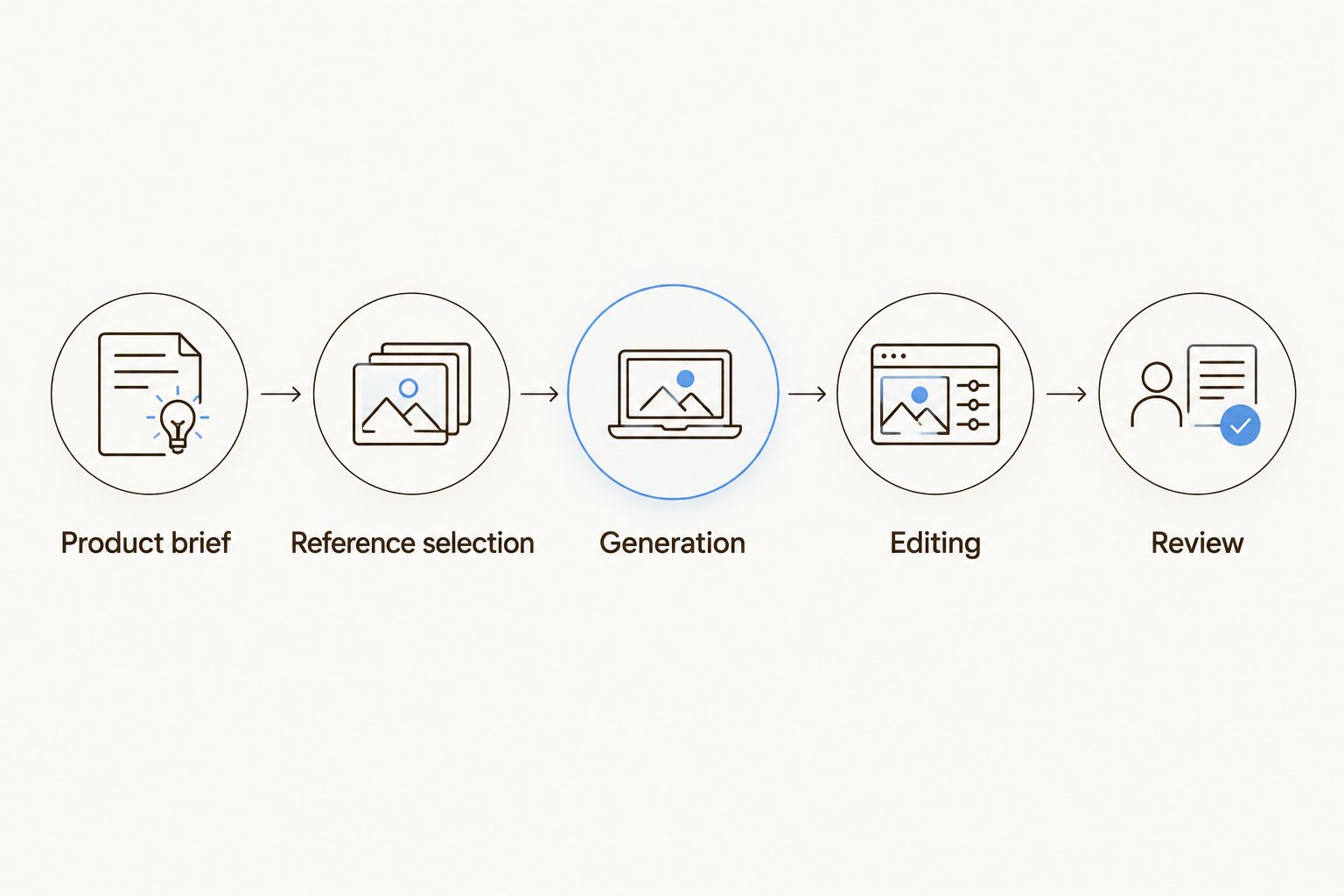
Generation is an intermediate step; editing and review complete the ad.
Editing and export
Finish the image or video
Move from the generated draft into the appropriate editing surface. Use the layered image canvas for a static ad and the video timeline for a sequence. Keep the approved product reference accessible while you work.
Ask the AI assistant for a localized change rather than a complete redesign. For example, request a different background while preserving the product and approved copy. Inspect the rest of the composition afterward; a narrow request still needs review.
Make final adjustments with manual controls. On the image canvas, inspect the arrangement of editable elements. On the video timeline, inspect scene order, timing, and whether the product remains understandable throughout the sequence.
Add exact wording as editable text where possible. Check spelling, capitalization, product names, and the intended action against the approved brief rather than trusting text embedded in a generated image.
Review the creative at its intended viewing size. Check that the product is recognizable, the message is readable, and important content is not lost near placement boundaries.
Export the finished output and inspect the exported file. Do not approve only the editor preview; check the actual deliverable for cropping, missing elements, and unintended changes.
Expected result: You have an inspected export and an editable working version for revisions.
Use 2 review passes: one for product and claim accuracy, then another for layout and timing. Separating those tasks keeps a visually appealing draft from distracting you from a factual error.
For a 2026 handoff, record the source image, approved wording, output placement, and final export name alongside the editable project. Another reviewer should be able to identify the approved version without opening every draft.
Reusable workflow configuration
Preserve the process, replace the inputs
Identify the parts of the process that should repeat: brief intake, product references, generation request, editing, and approval. Keep product-specific facts separate from reusable instructions.
Use the workflow editor to organize the repeatable process. Treat the reference creative as a starting structure, not a permanent requirement for every future product.
Mark which materials must change for each run: product image, approved facts, audience, hook, and destination. Do not let a previous client’s wording become the next client’s default.
Add an explicit review instruction before delivery. Ask the assistant to check against the supplied materials, then perform your own comparison of the export and approved brief.
Expected result: You have a reusable production structure with clearly identified inputs and a human approval boundary.
Planegraph’s benefit here is the connection between generation, editing, and reusable workflows. The limitation is equally practical: automated planning and retries do not replace product expertise or final advertising approval.
Variant: reuse the workflow for a new hook
Once the first ad is approved, reuse its structure to explore a different hook without changing the product identity. This is a creative variant workflow, not a claim that the software automatically detects product updates or publishes ads.
Prepare 3 variants around one approved concept:
Problem-led: Open with the situation the product addresses, using approved language.
Product-led: Introduce the product first, then show the relevant context.
Demonstration-led: Start with a supported use case rather than an invented outcome.
Change 1 creative variable per revision when you want a clear comparison between drafts. If you change the hook, background, product angle, and copy together, you cannot isolate what produced the visible difference.
Built-in avatars, pose guides, and reference content provide starting material when a concept needs a presenter or directed composition. Inspect those additions for fit, and never present a generated avatar as a real customer giving an authentic testimonial.
Troubleshooting
The product label changes
Return to the original product photo and simplify the request. Keep the product region unchanged where the editing task allows, or rebuild the surrounding layout around the source asset; do not approve generated lettering that only resembles the label.
A revision fixes one detail but changes another
Return to the last accepted version and request a smaller edit. Compare the entire composition afterward, especially the packaging, product proportions, and approved copy.
The ad follows the reference too closely
Rewrite the brief around the reference’s function rather than its appearance. Keep the idea of a product reveal or visual contrast, but replace distinctive wording, scenes, branding, and unsupported evidence.
The video looks acceptable frame by frame but feels unclear
Review the timeline as a sequence. Adjust scene order and timing so the viewer can identify the product and understand the intended action without pausing playback.
An old product claim appears in a new draft
Check the reusable instructions and reference materials for inherited text. Replace the stale input, regenerate the affected section, and inspect the full output for other carryovers before approval.
Customize your workflow
Expand only after the base process produces an editable, reviewable deliverable. For an agency, add separate client approval criteria; for an online store, organize product reference materials so packaging versions do not get mixed.
For recurring 2026 campaigns, retain the approved creative structure while revisiting the inputs before each run. A reusable workflow should remove repeated setup, not preserve outdated claims.
Make editable delivery a requirement, not an optional cleanup task. Planegraph’s AI ad maker workflow is best for product marketers who need to carry a concept through generation, revisions, and finished output.
FAQ
How do I use an AI ad maker with my own product photo?
Supply a clear product photo, approved facts, and a reference describing the creative structure you want. Generate a draft, compare it with the original product, then finish the layout or sequence in an editor.
Can I remix a competitor’s ad without copying it?
Use the reference to describe a creative structure, not to reproduce its distinctive assets or claims. Create original wording and use product materials you have permission to use.
What is Planegraph best for in an AI ad maker workflow?
Planegraph is best for product marketers who need editable creative rather than a generated asset alone. It combines generation, a layered image canvas, a video timeline, AI-assisted changes, and reusable workflows.
Will an AI ad maker preserve my packaging exactly?
Do not treat generated packaging as an exact reproduction. Compare labels, shape, colors, and proportions against the supplied product image, and use the original asset when exact fidelity is required.
Should I make a static image or a video ad first?
Choose the format required by your placement and creative idea. A static layout suits a single composition; video adds sequence, timing, and continuity checks.
Can I automatically reuse the same ad workflow for another product?
Reuse the production structure, but replace the product materials and approved facts deliberately. Review inherited instructions so the previous product’s wording does not enter the new creative.
Does an ad reference prove the concept will perform?
No, a reference shows a creative approach, not verified performance for your product. Evaluate the finished ad through your own campaign measurement rather than treating library inclusion as evidence.
One last thing
The easiest error to miss is not a strange background; it is a plausible claim nobody approved. Before delivery, compare every factual sentence in the ad with the brief and remove anything that lacks support.
Keep the creative flexible and the product facts fixed. That boundary makes revisions easier to direct and final approvals easier to defend.