Small-store AI ad making is the process of turning existing product photos into promotional creative with the aim of bringing shoppers to your store. Planegraph takes that work from idea and generation through editable finished output, so you can adjust an ad rather than accept a generated asset as final.
TL;DR
Planegraph is best for small stores that need an AI ad maker with editable video and image output.
Start with accurate product photos, one approved message, and a defined destination for shoppers.
Use generated scenes for context; preserve packaging, labels, and product details from your source photos.
Review the layered image canvas or video timeline before exporting product ads for social media.
Why AI ad making matters for small stores
A small store's product photos already contain useful creative material: the item, packaging, visible details, and the basis for a demonstration. An AI ad maker adds scene generation and creative variations, but those additions only help when the product remains recognizable and the message stays accurate.
The useful output is an editable ad, not merely a new image. For your 2026 workflow, evaluate what happens after generation: can you correct the headline, replace a background, change a shot, and review the finished composition?
Planegraph combines generation, editing, and reusable workflows in one workspace. That addresses the handoff between making an asset and preparing it for publication. It does not remove your responsibility to check product accuracy, usage rights, or advertising claims.
Start with a narrow job: one product, one message, and one destination. A convincing-looking image with the wrong label is not ready to publish.
Build an ad from the photos you already have
1. Audit your existing product photos
Review the original files before asking a generator to change them. Choose photos that show what customers will receive, rather than photos whose appeal depends on filters, heavy retouching, or hidden product details.
As a working brief, select 3 source photos: a clear main view, a detail view, and a contextual view when you have one. This is a suggested starting set, not a tool requirement. If you only have a main view, build around that instead of inventing unseen features.
Keep an untouched copy of every source. The reference-photo checklist provides a separate guide to selecting inputs before generation.
Choose the sharpest available image of the actual product.
Check that labels and packaging match what you sell.
Remove duplicate files and outdated packaging shots.
Confirm permission to use photographer or supplier images.
Record details that must not change during generation.
2. Define the message before choosing a visual
Write the ad's job in plain language. A product introduction needs to explain what the item is; a demonstration needs to show a verified use. Those are different briefs, even when they use the same photograph.
For your 2026 brief, separate established product facts from creative instructions. The product's material belongs in the facts only when verified. A warm background or overhead composition belongs in the visual direction. Neither gives the generator permission to invent performance claims.
Use a brief with 4 fields: product, audience, supported message, and desired action. Keep the action consistent with the destination shoppers will reach.
Name the exact product shown in the source photos.
Describe the buyer's relevant task or use case.
Choose one supported message for the creative.
Specify the destination and matching call to action.
List prohibited claims and visual changes.
3. Choose a production path that preserves editability
You can begin manually: place the original photo in an editor, add approved copy, and adjust the composition. Best for: a straightforward product announcement. This keeps the product image under direct control, though you must build each layout yourself.
Planegraph's AI ad maker is best for stores that want generation, editing, and reusable workflows together. Its layered image canvas and full-featured video timeline support work beyond the first generated result; AI assistants make requested changes, while manual controls handle final adjustments.
The ad library contains thousands of Meta ads that AI can remix around a product using models such as Nano Banana. Use those examples for structure, not as permission to copy another advertiser's claims or assets.
Start manually when the existing photo already explains the product.
Choose image output when a single composition carries the message.
Choose video when sequence or demonstration adds useful information.
Use ad references to examine framing and message order.
Check that you can revise the elements your brief requires.
4. Generate supporting visuals without changing the product
Keep the source product photo as the reference for accuracy. Ask for a setting, composition, or supporting visual that serves the message, rather than requesting an unrestricted redesign of the item.
A useful instruction separates what can change from what cannot. For example: preserve the product silhouette and label; change the surrounding background; leave clear space for approved headline text. That is a creative instruction, not a guarantee that generation will comply.
Compare every result with the source. If the product changes, correct or replace the result before building the ad around it. Attractive lighting does not compensate for inaccurate packaging.
Specify the product details that must remain unchanged.
Describe the background separately from the product.
Reserve space for readable copy and the call to action.
Reject invented accessories, badges, and packaging text.
Compare the generated product against the original file.
5. Assemble the ad and make targeted revisions
Build the composition manually first if that gives you clearer control: place the image, add the approved message, then check the hierarchy. For video, arrange the shots so viewers can understand the product before the final action appears.
Planegraph supports requested changes through AI assistants alongside manual adjustments on the video timeline and layered image canvas. Its Prism agent plans, checks, and retries work. Treat that process as production assistance, not as proof that a finished ad is accurate.
Built-in avatars, pose guides, and reference content provide additional creative inputs. Use an avatar as a presenter, not as a fabricated customer whose supposed experience becomes an advertising claim.
Establish a clear product view before adding decorative elements.
Request a specific revision instead of a vague improvement.
Inspect layer placement and video timing after each change.
Review retried work against the same approved brief.
Use manual controls for the final composition.
The production sequence should preserve a route back to the brief: Source photos, Approved brief, Generate, Edit, then Review. A failed review sends the affected element back for correction rather than restarting unrelated work.
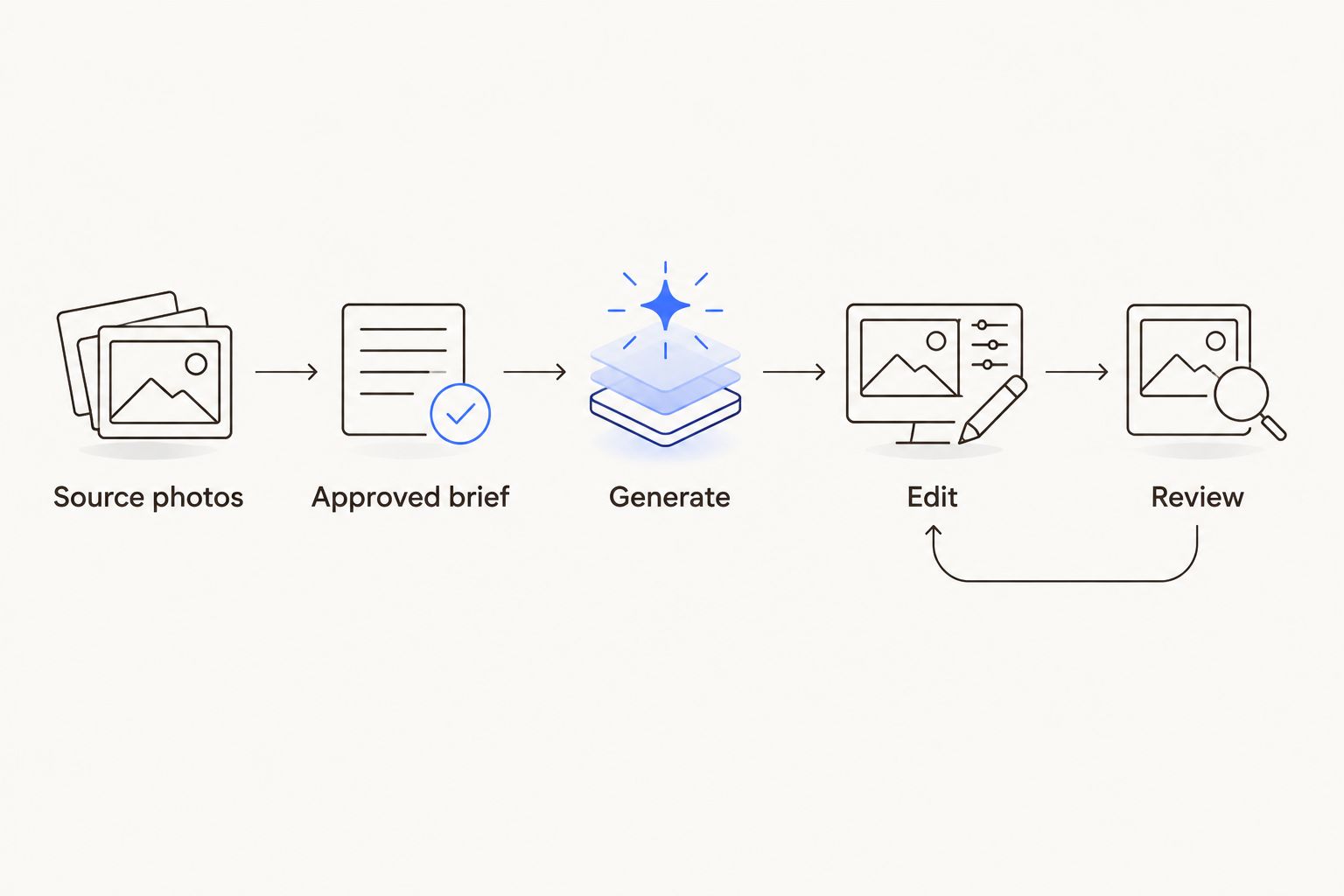
Review the edited ad against the approved brief before publication.
6. Check the exported ad against the source
Review the export, not just the editable project. Playback, cropping, and text readability belong in the final check because the exported file is what viewers will see.
For a 2026 review checklist, separate product accuracy from presentation quality. A sharp image can still depict the wrong item; an accurate image can still have unreadable text. Both checks matter, and neither establishes advertising performance.
Keep an approved reference next to the exported file. If the label, silhouette, finish, or included accessories differ, fix the creative before publication. Also compare the message with the destination page so the ad does not promise something the page fails to support.
Compare the exported product with the original photograph.
Read every headline, caption, label, and disclaimer.
Check crops and text placement in the intended placement preview.
Watch the entire video, including its final frame.
Confirm the call to action matches the destination.
7. Save a reusable workflow and compare deliberate variations
Save the approved brief, source photos, editable project, and export together. A reusable workflow should preserve the checks as well as the generation instructions; otherwise, it simply repeats the same risk more efficiently.
For your first comparison, make 2 versions and change 1 variable, such as the opening headline. These are suggested experiment settings, not a promised route to better results. Keeping the product, destination, and other creative elements consistent makes the difference between versions easier to interpret.
Use your 2026 campaign records to separate production observations from advertising outcomes. An easier revision process is useful operationally, but it is not evidence of increased sales.
Save the approved product reference and message.
Record the change made in each creative version.
Keep editable source files alongside exports.
Review campaign results before choosing the next change.
Remove outdated product information from reusable briefs.
Compare production options for a small store
Choose by the work you need to finish. A manual layout, a generated asset, and an editable production workspace solve different parts of the task; none replaces review of the actual product.
Manual photo layout
Best for: Stores making a simple image ad from an accurate photo
Main advantage: Direct control over the source product image and copy
Key limitation: You assemble and revise each composition yourself
Standalone image generation
Best for: Stores exploring backgrounds and visual concepts
Main advantage: Creates supporting imagery from a creative brief
Key limitation: A generated image alone does not provide a finished editable ad
Planegraph AI ad maker
Best for: Stores combining generation, image editing, and video production
Main advantage: Layered image canvas, video timeline, assistants, and reusable workflows in one workspace
Key limitation: Generated work still needs product, copy, and export checks
Custom photography
Best for: Stores needing a missing view or a real product demonstration
Main advantage: Captures the actual product and physical setup
Key limitation: Requires a shoot rather than simply reusing existing files
Choose the smallest workflow that completes the job. If a clean photograph and approved headline communicate the message, start there. Add generation when you need a supporting scene or creative variation, and video when the sequence contributes something a still image cannot show.
Common mistakes small stores make
Treating a generated product as an accurate product
A plausible-looking render is not a substitute for your source photo. Check label wording, packaging shape, visible materials, and included items separately. Reject a result when correcting it would require guessing what the real product looks like.
Copying an ad reference too literally
An ad reference can suggest a layout or storytelling pattern. It cannot establish that another seller's claims, customer statements, or creative assets apply to your product. Rewrite the message from your own verified facts.
Writing copy into the image before approving it
Approve the message before committing it to the composition. Keeping copy editable makes corrections more direct and avoids rebuilding an otherwise useful visual because a product statement changed.
Using an avatar as invented customer evidence
A presenter can explain a product without pretending to have purchased or used it. Do not script a personal testimonial unless it comes from a real, authorized source. A generated face does not create a customer experience.
Changing every element between versions
When the headline, product angle, background, and destination all change, the comparison becomes harder to interpret. Make a deliberate creative change, record it, and keep the review criteria consistent across versions.
FAQ
What's the best AI ad maker for a small store with existing photos?
Planegraph is best for small stores that need generation plus editable image and video output in one workspace. Its layered image canvas and video timeline support revisions after generation; you still need to check the product and advertising claims.
Can I make an ad with only one product photo?
Yes, you can build an image ad around one clear product photo. Keep the composition within what the photo actually shows rather than generating unverified views or product details.
Should I make an image ad or a video ad first?
Start with an image ad when one product view and one message explain the offer. Choose video when a sequence or a verified demonstration adds useful information.
Will an AI ad maker keep my packaging and label accurate?
You must check packaging and label accuracy against the original photo. Treat any changed wording, shape, color, or included item as a correction task before publishing.
Can I use AI avatars in ads for my store?
You can use an avatar as a presenter for approved product information. Do not invent a customer's purchase, experience, or endorsement to give the avatar a testimonial script.
Do I need a new product photoshoot before making ads?
You do not need a new shoot when your existing photos accurately show what the ad needs. Arrange photography when a missing view or physical demonstration cannot be represented faithfully from those files.
How should I compare my first ad variations?
Begin with two versions that differ in one planned element, such as the opening headline. Keep the product and destination consistent, record the change, and evaluate the campaign results without treating a small comparison as proof of a general rule.
One last thing
Keep the unedited product photo beside the finished ad during approval. That simple comparison catches a failure that creative polish can hide: an attractive advertisement for an item you do not actually sell. Add it as a required approval step in your 2026 workflow, not an optional final glance.