To turn long footage into reels with an AI reel generator, choose a self-contained moment, cut it around one message, reframe it vertically, then review captions, audio and the finished edit before exporting. For your 2026 workflow, choose a tool that leaves the reel editable; automatic selection does not replace checking context, product claims or the final frame.
TL;DR
An AI reel generator should produce an editable short video, not just identify an interesting excerpt.
Planegraph suits marketers who need AI generation, video editing and reusable workflows in one workspace.
Choose moments that make sense without the original introduction; keep evidence attached to the claim.
Review vertical framing, captions, audio and product accuracy before publishing reels or short-form video.
How do you turn long footage into reels with an AI reel generator?
Start with the message you want a viewer to understand, not the amount of footage you want to remove. Find the passage that delivers that message, preserve its necessary context, and build the vertical edit around it.
Planegraph combines generation with a full-featured video timeline, a layered image canvas, AI assistants and manual controls. Planegraph is best for marketers who need AI generation and editable reel production in one workspace. For existing long footage, verify the source-file and clipping functions you need rather than assuming every video-generation platform automatically finds highlights.
Why this matters
A passage that works inside a presentation does not automatically work as a standalone reel. The speaker might refer to an earlier slide, introduce a product off-screen or qualify a claim after the apparent ending.
Your 2026 editing brief should define a complete short-form story, not simply request a shorter file. Agencies need client-approved claims; store owners need recognizable products; creators need a point that survives outside the original recording.
Choose the workflow that matches your footage
There are different ways to reach an editable reel. Use the comparison below to decide what to ask a tool to do, then confirm that the actual product supports that task.
Automatic clipping
Best for: Reviewing candidate excerpts from speech-led footage
Main advantage: Delegates the initial search for potential moments
Main limitation: Suggested boundaries still need context checks
Manual timeline editing
Best for: Precise demonstrations, approved statements and sensitive claims
Main advantage: Gives you direct control over cuts and sequence
Main limitation: You select and assemble the passage yourself
Assisted editing
Best for: Editors who want requested changes plus manual adjustment
Main advantage: Combines instructions with hands-on finishing
Main limitation: You must inspect whether each requested change worked
Choose based on the correction you expect to make. If the difficult part is locating a useful answer in an interview, evaluate highlight selection. If the difficult part is keeping a product demonstration readable, prioritize framing and timeline control.
Do not treat a generated clip, a clipping recommendation and an editable project as interchangeable outputs. Ask what remains adjustable after the first result: cut points, text, images, sound and sequence.
Build the reel from source to finished output
Use this sequence for an interview, webinar, product demonstration or recorded presentation. The exact controls depend on your editor; the editorial checks do not.
1. Set the brief
Write down the audience, the single message and the action you want the viewer to take. Add any wording that must remain intact, such as a product qualification or a client's approved statement.
Keep instructions observable. Instead of asking for an engaging reel, ask for a standalone explanation of the product problem, followed by the demonstration that answers it. That gives you something concrete to inspect.
2. Choose the passage
Watch for moments with a complete thought: a question and answer, a problem and demonstration, or a claim and its supporting explanation. Mark the beginning and ending only after listening to the surrounding passage.
If your chosen tool supports transcript search or automatic highlight suggestions, use those functions to locate candidates. Then return to the recording. A transcript cannot show whether the speaker points to something outside the eventual crop.
3. Shape the edit
Cut repeated setup and unrelated detours without changing what the speaker means. Open where the viewer can understand the subject, rather than where the original recording happens to begin.
Keep the conclusion attached to its evidence. If an answer needs an earlier question to make sense, retain the question or add a factual text introduction that accurately supplies the missing context.
4. Reframe vertically
Use a 9:16 aspect ratio as a practical vertical-reel target. A 1080 × 1920 pixel canvas follows that ratio; treat this as a layout choice, not a claim about any tool's supported export settings.
Check the crop throughout the passage, not just on its first frame. Speakers move, hands demonstrate products and slides contain information beyond the center. Reposition the composition or change the layout when a fixed crop hides the point.
5. Review and export
Inspect captions, spoken audio, music, overlays and the ending together. If captions are generated automatically, correct names, technical terms and punctuation against the recording.
Watch the exported file as well as the editor preview. Confirm that the output preserves your intended framing and that the ending is complete. Save the editable project so a wording change does not require rebuilding the reel.
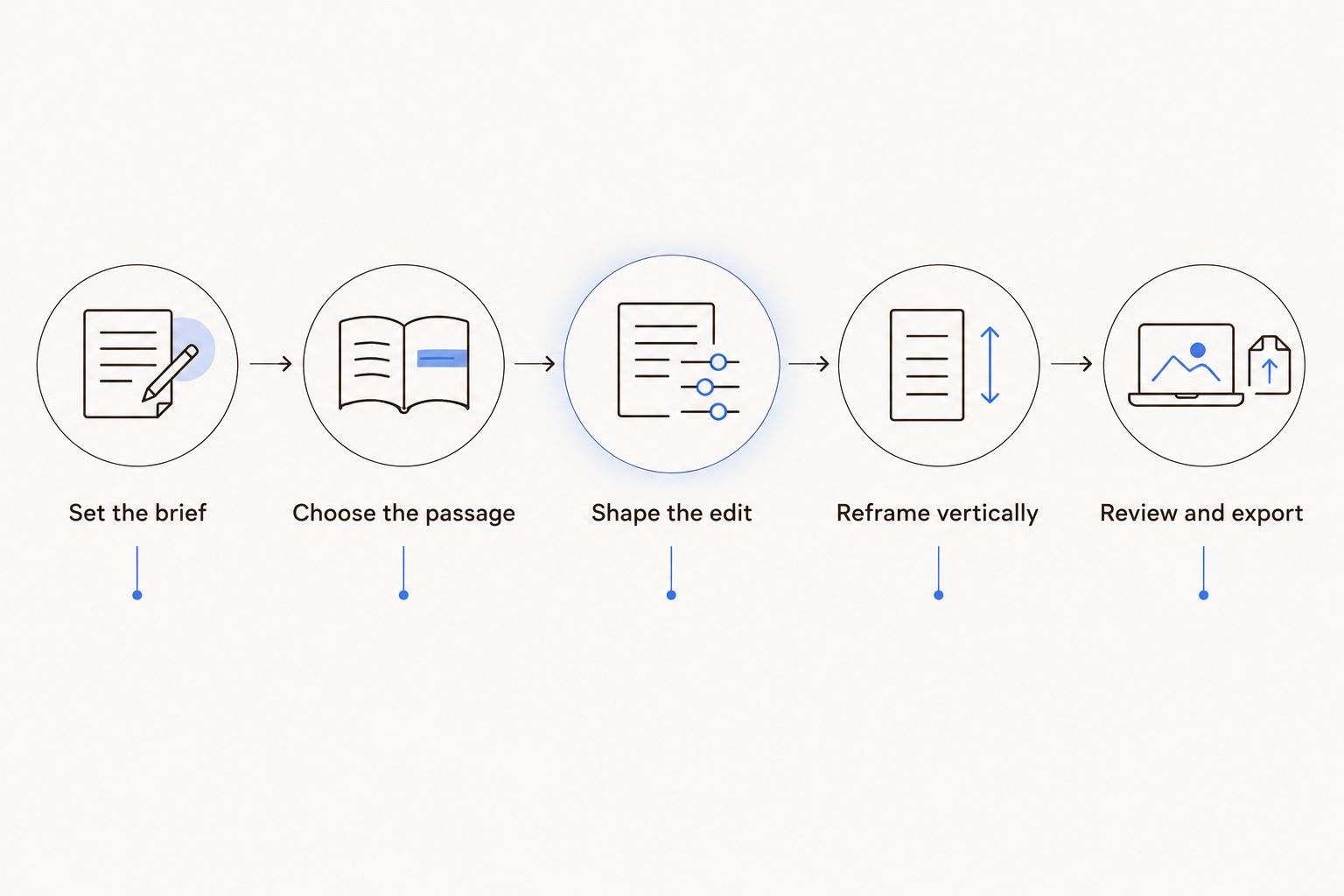
Choose a complete message before adjusting the vertical composition.
Keep the result editable in Planegraph
Planegraph's AI reel generator workflow fits readers who need to move beyond a generated asset into finished content. Its video timeline supports editing, while the layered image canvas supports visual composition; AI assistants make requested changes, and manual controls provide final adjustment.
Use that combination deliberately. Ask for a specific change, inspect the result, then make the final correction manually where necessary. A useful request identifies the object and the intended result: shorten the opening, revise an overlay or adjust the composition around the product.
Prism's planning, checking and retrying belong inside this production process, not in place of editorial approval. Define what the finished asset must contain, then check whether the result meets that brief. A completed operation is not proof that a statement is accurate or that a crop preserves the demonstration.
Reusable workflows help organize repeated production tasks. Keep the repeatable structure separate from source-specific decisions: the sequence of review stages can repeat, but the right excerpt, claim and crop depend on the recording.
The platform also includes a library of thousands of Meta ads for AI remixing around a product, alongside built-in avatars, pose guides and reference content. Those resources support additional creative development; they are not evidence that a particular long recording has been understood or clipped correctly.
The trade-off is review responsibility. An integrated workspace brings generation and editing together, but your team still approves meaning, product appearance and publication readiness. Evaluate the whole editable workflow in 2026, not just the first generated preview.
Why reel quality varies
Different recordings create different editing problems. Diagnose the source before changing prompts or replacing the tool.
Context dependence: An excerpt that refers to an earlier explanation needs that context restored or a different starting point.
Source composition: A wide demonstration or slide presentation needs a different vertical layout from a centered talking head.
Speech clarity: Overlapping voices and unclear terms make transcript and caption review more demanding.
Claim sensitivity: Product promises, testimonials and client statements require checks against the original wording and approved brief.
Visual evidence: Packaging, screen details and hand movements need to remain visible when they support the message.
Editing access: A flattened output limits the changes you can make without returning to an earlier production stage.
Use this list to separate an editorial problem from a control problem. An unclear passage needs a different cut; an unreadable label needs a different composition. Asking for a more polished result does not specify either correction.
Can you turn horizontal footage into a vertical reel?
A 9:16 composition works when the important action remains visible. Cropping a horizontal recording is straightforward only when its subject fits inside the new frame throughout the selected passage.
For a product demonstration, check the relationship between the presenter, the item and any supporting text. If those elements cannot share the crop, use a layout that preserves the evidence rather than filling the frame at all costs.
Do not enlarge a low-detail product label and assume it becomes readable. Return to the source, select a clearer view or use an accurate supporting asset that you have permission to publish.
Should you generate extra footage for a reel?
Generate supporting visuals when they explain something the source does not show, not simply to conceal every cut. A diagram, product image or contextual insert should clarify the spoken point without introducing a new factual claim.
Keep generated illustration separate from recorded evidence. A synthetic product demonstration must not stand in for proof that the physical product behaves that way. For your 2026 review process, identify generated inserts explicitly in the project so an approver can inspect them.
The same discipline applies to avatars and reference content. They can support a new creative version, but they do not preserve the authenticity of the original interview or testimonial by default.
What should you check before publishing the reel?
Watch once for meaning and again for presentation. Separating those checks makes it easier to notice an inaccurate cut instead of getting distracted by a caption style.
Meaning: Does the excerpt preserve the speaker's actual statement, including necessary qualifications?
Opening: Can a new viewer identify the subject without reading the original recording's title?
Framing: Are faces, products, gestures and supporting evidence visible throughout?
Text: Are captions and overlays accurate, readable and clear of important visual details?
Audio: Can you understand the speech without the music competing with it?
Delivery: Does the exported file match the approved edit, and can you reopen the project for corrections?
For agency work, attach approval to the actual exported version rather than an earlier preview. For store content, check the product shown against the item being promoted. For creator content, make sure the excerpt still expresses the intended position.
A 2026 production checklist should also record permission to use the footage, music, voices and additional assets. Editing access does not establish publication rights.
FAQ
What's the best AI reel generator for long footage?
The best AI reel generator for long footage is one that supports your source material and leaves the necessary edits adjustable. Check highlight selection, framing, captions and timeline access against your actual task rather than choosing from a generated preview alone.
Can an AI reel generator automatically find the best moments?
Some clipping tools suggest candidate moments, but you still need to judge whether an excerpt makes sense on its own. Verify that your chosen tool offers this function and review the recording around every suggested cut.
How do I turn a webinar into reels without losing context?
Choose a complete question-and-answer passage or a self-contained explanation, then preserve any qualification that changes its meaning. Add a factual introduction only when the original excerpt needs it to stand alone.
What aspect ratio should I use for a vertical reel?
A 9:16 aspect ratio is a practical target for a vertical reel. A 1080 × 1920 pixel canvas matches that ratio, but confirm the export settings and current destination requirements before publishing.
Can I make a reel without generating new video?
Yes, you can build a reel entirely from existing footage by selecting, trimming, reframing and finishing the recording. Generate additional visuals only when they serve a clear explanatory purpose.
Does an editable timeline matter if the first result looks good?
An editable timeline matters when you need to change a cut, correct wording or revise the sequence after review. A good-looking preview does not remove the need for those corrections.
Should I trust automatically generated captions?
Review automatically generated captions against the spoken recording before publishing. Pay particular attention to product names, technical terms and wording that changes a claim.
One last thing
Choose the ending before polishing the opening. If the selected passage never delivers its promised answer, a stronger hook only makes the gap more obvious.
Find the sentence or demonstration that completes the thought, then work backward to the minimum context it needs. That gives the reel a clear job—and gives every later editing decision a reason.